
On this page
Create a Kubernetes cluster
Provision infrastructure, install Kubernetes Core through the actual ClusterPilot wizard and verify the OperationRun, nodes and ReadyForAddons state.
These steps match the existing self-hosted product interface. An enabled workspace and suitable permissions are required.
Before you start
You need access to an enabled ClusterPilot workspace with rights to manage provider accounts, infrastructure and cluster operations. Have a validated provider account, a supported region, a bootstrap key or approved SSH access, a compatible OS profile, node sizes and an agreed network range. Your operator must prepare the Harbor registry profile, verified Core image lock and matching bootstrap/CNI packages. Without these inputs, the preview or admission can block installation.
How cluster creation works
A Kubernetes cluster has a control plane that manages desired state and worker nodes that run Pods. ClusterPilot first prepares virtual machines and access, then installs Kubernetes Core with kubeadm and a CNI network plugin, and records each change as an OperationRun. Optional platform tools are a later step: a created infrastructure record alone is not a running cluster.
| Stage | ClusterPilot screen | Evidence |
|---|---|---|
| Prepare machines | /cluster-infrastructure/new | Reviewed plan, provision activity and linked nodes |
| Install Kubernetes | /clusters/new | Core preview, OperationRun and node readiness |
| Add platform tools | /clusters/{id}/addons | Add-on Plan, preflight and observed install state |
1. Provision the infrastructure
- 01
Validate the provider account
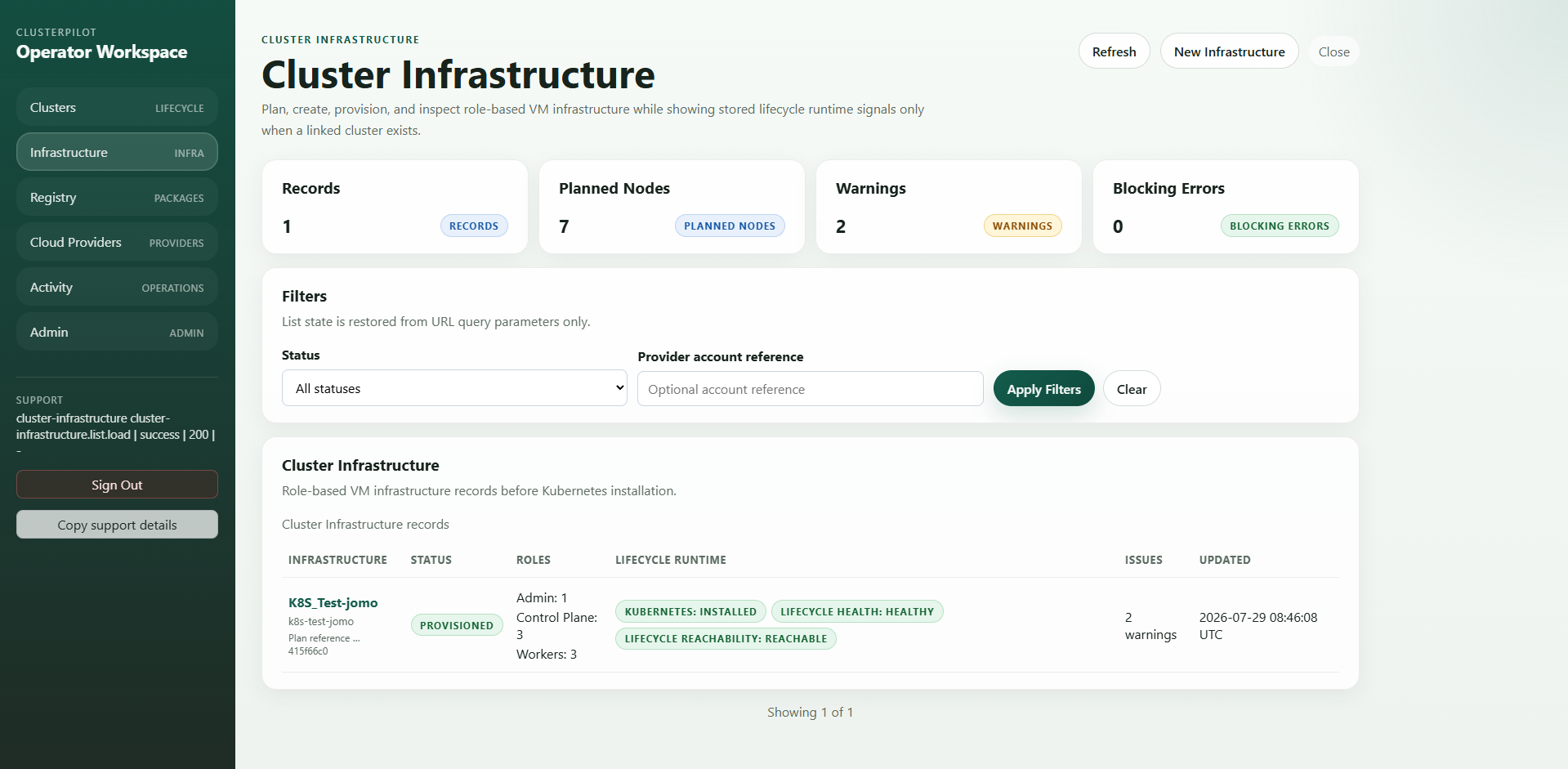
Open Provider Accounts, add the approved provider credentials through the product's protected flow and validate the account. Return to Cluster Infrastructure → Create infrastructure. The wizard will not offer an unvalidated account.
- 02
Describe the machines
Choose Provider Account and Region, then enter Name, Hardened OS Profile, SSH Bootstrap and Role Groups. Select control-plane and worker counts, instance types, images and networking according to the provider catalog. Confirm quota, recurring VM cost and fault-domain requirements outside the ClusterPilot plan if your provider does not show them here.
- 03
Preview, create, provision
Choose Preview Cluster Plan. Review VM names, roles and any blocking validation. Choose Create Infrastructure only for the approved result. On the saved infrastructure detail page choose Provision Infrastructure and follow its activity link. Wait for linked machines and bootstrap access to become usable before opening the Kubernetes wizard.
2. Install Kubernetes Core
- 01
Select prepared infrastructure
Open Clusters → Create Kubernetes Core Cluster (/clusters/new). Choose the provisioned infrastructure. If no infrastructure appears, return to its detail page and check provisioning, roles and bootstrap access.
- 02
Enter Core settings
Set Cluster name and a version offered by the selector; keep Auto-prepare nodes enabled when node preparation is required. Review Core Registry and CNI package selections. In Network and Runtime enter the agreed Pod and Service CIDRs and runtime settings; the ranges must fit your environment and must not overlap with the routed networks. Only use an Airgap profile if your environment requires it.
- 03
Review and start
Choose Preview core plan and artifacts. Review node addresses and roles, package evidence and rendered kubeadm configuration. Resolve every blocker, then choose Create Kubernetes Core. This starts an auditable OperationRun and does not yet install optional add-ons.
| Input | Why it matters |
|---|---|
| Kubernetes version | Determines compatible packages, node join and health checks. |
| Pod CIDR / Service CIDR | Separate address spaces for workloads and virtual service IPs; check overlap with your network team. |
| Core Registry / CNI | Verified images and a compatible networking plugin are required for Core readiness. |
3. Verify readiness and solve blockers
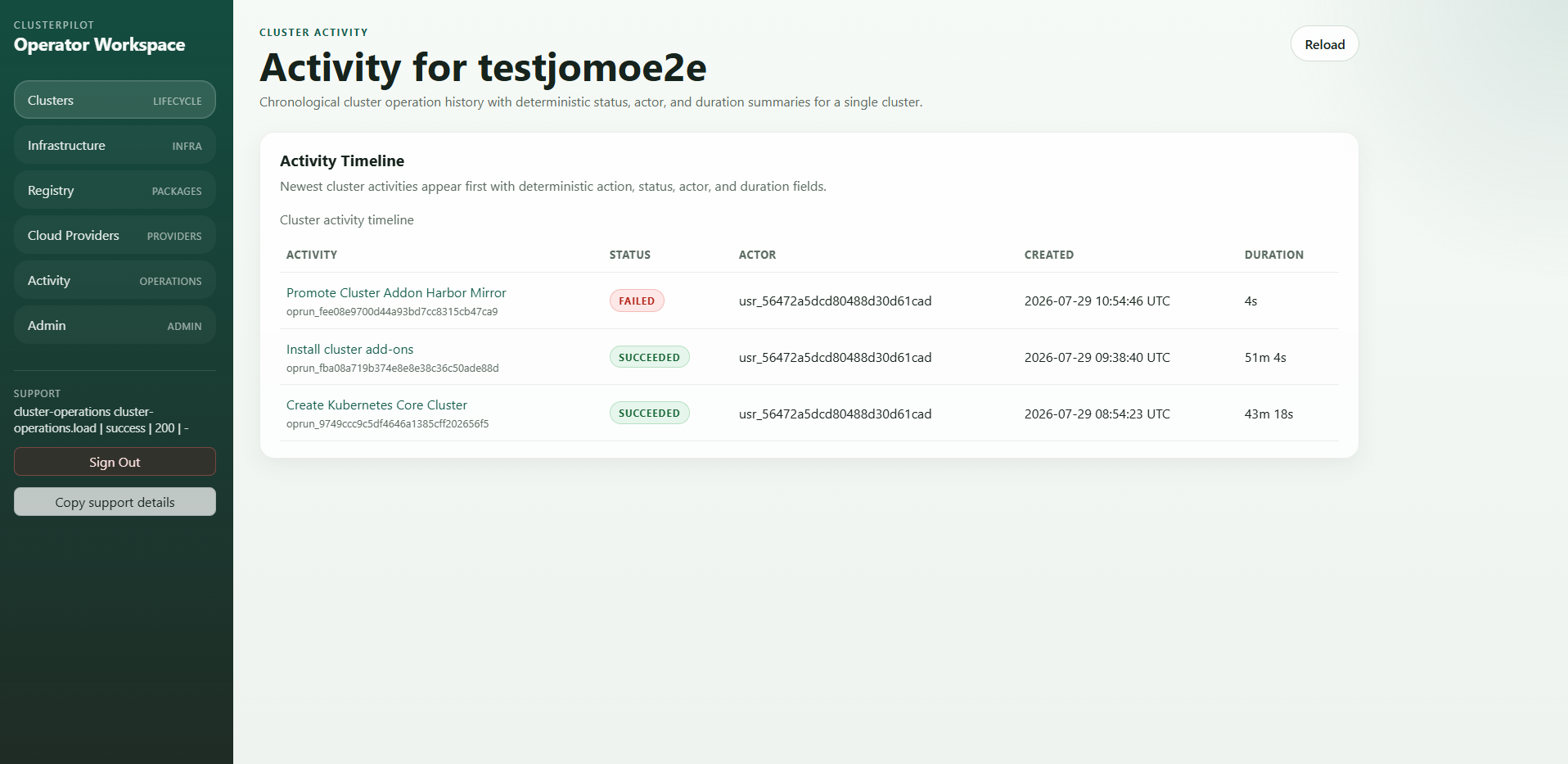
- ✓Open the cluster detail and its latest OperationRun. Check the current step and evidence rather than treating a redirect or an old green badge as success.
- ✓Confirm the intended node roles are ready and the cluster reaches ReadyForAddons before installing platform tools.
- ✓If a preview is disabled, correct the field named by validation; if provisioning failed, inspect the provider activity and bootstrap/SSH trust; if Core failed, retain the operation ID and redacted error for support.
Install tools and add-ons → · Get useful support quickly →
Technical references
These Kubernetes references describe technical behavior. Your pilot agreement defines the capabilities confirmed for your cluster.
Screens and fields were checked against the ClusterPilot product code. Availability and provider ownership depend on your installation or agreement.